
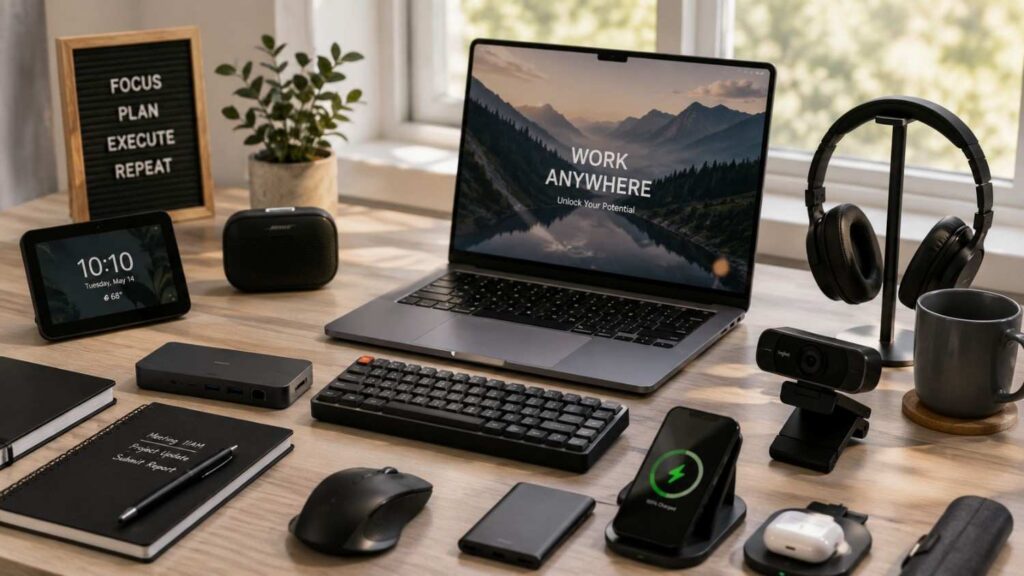
Top 10 Tech Gadgets for Remote Work
The Top 10 Tech Gadgets for Remote Work should make everyday tasks easier, clearer, and more dependable. A strong home-office setup is not defined by the number of products placed on the desk. It is defined by how effectively each item supports sustained concentration, communication, comfort, and movement between working locations.
Modern laptops provide considerable performance in a portable design, but portability creates compromises. Their screens are relatively small, their keyboards and touchpads are fixed in position, and their ports may not accommodate a permanent desktop setup. Built-in cameras are often positioned below eye level, while wireless performance depends heavily on the home’s router placement, construction, interference, and internet connection.
Carefully selected work-from-home technology can address those limitations. A monitor provides more room for complex documents. A stand and external input devices allow the laptop screen and keyboard to be positioned independently. A dock connects displays, Ethernet, storage, audio devices, and charging through one cable. Dedicated communication equipment improves how clearly remote colleagues can see and hear one another.
Ergonomic arrangement remains important regardless of product quality. OSHA’s workstation guidance recommends placing the top of the monitor at or just below eye level and providing sufficient room for the keyboard and mouse. It also stresses that equipment should be selected and arranged as a coordinated workstation rather than as unrelated components.
The table below summarises ten representative categories and current product examples.
| Gadget | Recommended Example | Best For | Main Buying Check |
|---|---|---|---|
| 1. Main monitor | Dell UltraSharp U2725QE | Permanent desks | Resolution, charging, and laptop support |
| 2. Portable monitor | Dell Pro P1425 | Travel and hybrid work | USB-C video compatibility |
| 3. Thunderbolt dock | Dell SD25TB4 | Multi-device desks | Power and display limits |
| 4. Ergonomic keyboard | Logitech ERGO K860 | Heavy typing | Layout, width, and learning curve |
| 5. Productivity mouse | Logitech MX Master 4 | Detailed workflows | Hand fit and software support |
| 6. Laptop stand | Twelve South Curve Flex | Better screen height | Laptop size, stability, and input devices |
| 7. 4K webcam | Logitech MX Brio | Frequent video calls | Lighting, placement, and USB bandwidth |
| 8. ANC headset | Logitech Zone Wireless 2 ES | Noisy environments | Certification, microphone, and comfort |
| 9. USB microphone | Shure MV7+ | Presenters and creators | Desk space and microphone technique |
| 10. Wi-Fi 7 router | eero 7 | Busy connected homes | Internet speed, coverage, and placement |
Prices are intentionally excluded because they vary by market, seller, promotions, and time. Verify the regional warranty, authorized seller, return period, included cables, and official specifications before purchasing.
Related Articles
Gadgets 1–3: Expand Your Screen and Connectivity
Screen space and dependable connectivity usually provide some of the most noticeable improvements for desk-based remote workers. A laptop display can handle a single focused task, but it becomes restrictive when work requires a document, communication platform, browser, reference material, and data source to remain visible at the same time.
An external monitor reduces repeated window switching and allows information to be arranged according to the workflow. A portable monitor extends that benefit to temporary workspaces. A docking station then connects these displays with power, Ethernet, storage, keyboards, webcams, and other peripherals through a central interface.
These purchases must be planned together. A high-resolution monitor may require more graphics bandwidth than the laptop or dock can supply. A dock may advertise support for several displays, but the computer’s processor, graphics hardware, operating system, or USB-C implementation may impose a lower limit. A portable monitor may use a USB-C connector while still requiring the laptop to support DisplayPort Alt Mode.
Desk dimensions also matter. A 27-inch monitor needs enough viewing distance and width for comfortable placement. A dock requires ventilation and access to ports. Portable displays need a stable surface and may compete with the laptop for limited desk depth.
For beginners, the essential buying checks are resolution, physical size, display connection, charging power, and the number of supported monitors. Advanced users should also assess refresh rate, colour gamut, Ethernet speed, USB bandwidth, daisy chaining, KVM support, and firmware management.
The following three gadgets create the display and connectivity foundation on which the rest of the remote-work setup can be built.
| Work Style | Most Useful Gadgets | Primary Benefit | Best For |
|---|---|---|---|
| Home Office | 4K Monitor, Thunderbolt Dock, Ergonomic Keyboard | Comfortable long-term productivity | Full-time remote employees |
| Hybrid Work | Portable Monitor, Laptop Stand, Noise-Cancelling Headset | Easy mobility between locations | Hybrid professionals |
| Frequent Travel | Portable Monitor, Productivity Mouse, Compact Headset | Portable workstation setup | Consultants and business travelers |
| Creative Work | 4K Monitor, USB Microphone, 4K Webcam | Better content creation and collaboration | Designers, editors, creators |
| Video Meetings | Webcam, Headset, USB Microphone | Clear communication and professional presence | Managers, trainers, sales teams |
1. Dell UltraSharp U2725QE 4K Monitor
A high-resolution external monitor gives remote workers more space for documents, spreadsheets, code, design applications, research, and communication windows. The Dell UltraSharp U2725QE is a 27-inch display with a native 3840 × 2160 resolution, IPS Black technology, extensive positioning adjustments, and a Thunderbolt 4 hub.
Dell specifies a 120 Hz refresh capability, a 3000:1 contrast ratio, up to 140 watts of Power Delivery through its Thunderbolt 4 upstream connection, and several integrated USB and display ports. The monitor also supports DisplayPort output for compatible daisy-chain arrangements and provides an Ethernet connection through its hub functionality.
These capabilities make it suitable for professionals who want one device to provide both a detailed display and much of the connectivity normally associated with a separate dock. The 4K resolution is especially useful for viewing fine text, detailed visual work, and several application panels.
However, buyers should verify that their laptop can output the desired resolution and refresh rate through the selected port. Scaling preferences also matter, because 4K content on a 27-inch screen may require operating-system scaling for comfortable text.
Workers using mainly email and basic documents may find a less expensive QHD monitor sufficient. Colour-sensitive professionals should evaluate calibration requirements and workflow-specific colour spaces rather than relying only on resolution.
2. Dell Pro P1425 Portable Monitor
A portable monitor recreates part of a dual-screen workstation in a hotel, co-working space, client office, shared room, or temporary home setup. It is particularly useful for workers who regularly compare documents, present material to another person, monitor communication while writing, or manage spreadsheets away from a permanent desk.
Dell’s P1425 uses a 14-inch 1920 × 1200 IPS display with a 16:10 aspect ratio. It includes two USB-C ports that support DisplayPort 1.2 Alt Mode and power pass-through of up to 65 watts. Dell also lists landscape and portrait positioning, a 60 Hz refresh rate, and an approximate weight of 1.25 pounds for the monitor itself.
The taller 16:10 format provides additional vertical room compared with a conventional 16:9 portable display, which can be helpful for documents, web pages, and business applications.
Compatibility is the main buying concern. The laptop’s USB-C port must support video output through DisplayPort Alt Mode. A USB-C port designed only for charging or data transfer may not produce an image.
Power pass-through also does not guarantee that every laptop receives its preferred charging wattage. High-performance computers may charge slowly or require their original power adapter.
Before buying, consider screen brightness, protective storage, cable length, stand stability, and whether a 14-inch display is large enough for the intended work.
3. Dell SD25TB4 Thunderbolt 4 Smart Dock
A docking station turns a portable computer into a workstation by connecting displays, Ethernet, storage, audio devices, keyboards, webcams, and power through one laptop cable. It is most valuable for workers who regularly move the same computer between a desk and another location.
Dell’s SD25TB4 is a Thunderbolt 4 smart dock that can provide up to 130 watts to supported Dell computers and up to 96 watts to non-Dell systems. Dell’s product documentation also identifies DisplayPort, HDMI, USB-C, USB-A, Ethernet, and remote-management capabilities.
The single-cable experience is convenient, but display support depends on the connected computer. The dock cannot override limits imposed by the laptop’s graphics hardware, operating system, Thunderbolt implementation, or display-compression support.
Charging compatibility deserves similar attention. A workstation-class laptop that expects more than 96 watts may charge slowly or reduce performance when connected as a non-Dell system. Some proprietary Dell power features also apply only to compatible Dell computers.
A Thunderbolt dock is often excessive for a worker connecting one 1080p monitor and two USB accessories. A simpler USB-C hub may perform that job at lower cost.
The SD25TB4 is most appropriate for a permanent desk with several high-bandwidth devices, one or more external displays, wired networking, and frequent laptop removal. Review Dell’s current compatibility and display-support documentation before finalising the setup.
Gadgets 4–6: Improve Input Comfort and Ergonomics
Remote workers interact with the keyboard, mouse, and screen for many hours, making the arrangement of these devices as important as their specifications. An expensive workstation can still feel uncomfortable when the monitor is too low, the mouse sits far from the body, or the keyboard forces the hands into an unsuitable position.
Ergonomics is not a promise that one product will prevent discomfort or injury. It is the process of fitting equipment and tasks to the user. Body dimensions, typing style, desk height, chair adjustment, eyesight, hand dominance, and previous health conditions all affect what feels appropriate.
OSHA advises selecting and arranging the monitor, keyboard, and pointing device together. Its guidance notes that keyboard and mouse placement can influence awkward posture, reaching, repetition, and contact stress. It also recommends adequate workspace and a monitor position that can be viewed without repeatedly bending the head or neck.
An ergonomic keyboard may help one worker but frustrate another who dislikes split layouts. A large productivity mouse may support detailed control but feel unsuitable for smaller hands. A laptop stand improves screen positioning only when the worker also uses an external keyboard and mouse; otherwise, raising the computer can make typing less comfortable.
For that reason, fit and adjustability are more important than labels such as “ergonomic” or “professional.” Buyers should test equipment when possible and use retailers with practical return policies.
The next three gadgets address the physical relationship between the worker and the computer. They should be evaluated as parts of one coordinated setup rather than as independent purchases.
4. Logitech ERGO K860 Keyboard
The Logitech ERGO K860 uses a curved split keyframe, cushioned palm support, integrated number pad, wireless connectivity, and adjustable tilt legs. Logitech designed the keyboard to promote a more natural hand and wrist position than a conventional flat rectangular layout.
This style of keyboard can be useful for writers, analysts, developers, accountants, and administrative professionals who type for long periods. The separated key groups reduce the need to bring both hands sharply toward the centre, while the curved surface follows the different lengths and angles of the fingers.
The design still requires adaptation. Users accustomed to a compact straight keyboard may initially type more slowly or miss keys. The integrated number pad increases the overall width, which can push the mouse farther from the body on a small desk.
That positioning issue matters because OSHA recommends arranging the keyboard and pointing device to avoid unnecessary reaching. Workers who use a mouse more often than a number pad may prefer a tenkeyless ergonomic keyboard instead.
The ERGO K860 should be assessed for layout, language, desk width, operating-system support, and hand comfort. The palm support is intended to support the hands during pauses rather than encourage heavy pressure while actively typing.
Allow an adjustment period and review the complete workstation if discomfort continues. A keyboard cannot correct an unsuitable chair, desk height, workload, or mouse position by itself.
5. Logitech MX Master 4 Productivity Mouse
A productivity mouse provides more control and customisation than a basic travel mouse. It can be valuable for spreadsheets, large documents, design applications, code editors, web research, video timelines, and workflows that involve frequent horizontal or high-speed scrolling.
Logitech introduced the MX Master 4 in 2025 as the first MX mouse with haptic feedback. Logitech’s official materials also identify software customisation through Options+ or Logi Tune, while its support documentation lists the mouse at approximately 150 grams.
The MX Master family is known for a sculpted right-handed shape, a primary scroll wheel, a thumb wheel, and configurable controls. These features can reduce repeated keyboard shortcuts when they are mapped carefully to frequently used actions.
The main consideration is physical fit. A full-sized mouse can support the hand well for some users but feel heavy or too tall for others. It is also less convenient for travel than a compact pointing device.
Workers should avoid assuming that more buttons automatically improve productivity. Poorly chosen shortcuts can create confusion, while software-dependent features may behave differently across managed corporate computers.
OSHA recommends keeping the pointing device close enough to avoid excessive reaching and selecting a device that fits the user’s hand and task.
Test the mouse with the actual keyboard and desk arrangement. Left-handed users should select a suitable alternative because the MX Master 4’s sculpted form is designed for right-handed operation.
6. Twelve South Curve Flex Laptop Stand
A laptop stand raises the computer’s display so it can be positioned closer to the height of an external monitor or the user’s natural viewing line. This can make a laptop-based setup feel more like a conventional desktop workstation.
The Twelve South Curve Flex is adjustable in height and angle, folds for transport, and includes a travel sleeve. Twelve South states that the stand can raise a compatible laptop screen by up to approximately 22 inches, depending on the position.
The product is marketed primarily for MacBook models, so users of other laptops should verify dimensions, weight, base shape, and ventilation before purchasing. A stable fit is more important than visual design.
A raised laptop should normally be paired with a separate keyboard and mouse. Elevating the computer while continuing to type on its built-in keyboard can raise the arms and bend the wrists into an uncomfortable position.
OSHA’s workstation guidance recommends placing the monitor top at or below eye level and ensuring that the keyboard and mouse have adequate room. The exact screen height will vary according to eyesight, viewing distance, posture, and whether the user wears multifocal lenses.
The Curve Flex is particularly useful for hybrid workers because it can adapt to different table heights. A simpler fixed stand may offer better value for a permanent desk. In either case, prioritise stability, appropriate screen distance, and a coordinated external input setup.
Gadgets 7–9: Upgrade Meetings, Calls, and Focus
Remote work relies heavily on spoken and visual communication. A meeting can become tiring when participants struggle to hear one another, the camera points upward from a low laptop screen, or background activity repeatedly interrupts concentration.
Audio should usually receive priority. People can continue a meeting when the image is imperfect, but unclear speech, echo, clipping, or inconsistent microphone volume makes discussion difficult. A dedicated headset is often the most practical communication upgrade because it positions the microphone close to the mouth and reduces the effect of movement.
A separate webcam improves framing and gives the user more control over camera height. However, lighting, background contrast, and placement often matter more than maximum resolution. A 4K camera positioned poorly in a dark room may look less professional than a well-lit 1080p camera at eye level.
A USB microphone is a more specialised purchase. It can provide stronger spoken-word quality for webinars, recorded courses, podcasts, sales demonstrations, and executive presentations. It also requires sensible microphone technique, desk space, and room management.
These three product categories should be selected according to communication frequency. A worker spending six hours per day in meetings should prioritise headset comfort, microphone reliability, mute controls, and platform compatibility. Someone producing recorded content should give more attention to microphone placement, monitoring, gain control, and room acoustics.
Corporate users must also consider device-management and meeting-platform requirements. “Works with” and “certified for” are not always identical claims, and different headset configurations may include different receivers or controls.
The following gadgets address video quality, listening comfort, speech clarity, and professional presentation.
7. Logitech MX Brio 4K Webcam
A dedicated webcam improves flexibility because it can be positioned independently from the laptop. This allows the camera to remain close to eye level even when the laptop screen is placed lower or used as a secondary display.
Logitech’s MX Brio supports 4K video at 30 frames per second and 1080p at 60 frames per second. Logitech also identifies a larger-pixel sensor, USB-C connectivity, adjustable fields of view, autofocus, and software controls through its supported applications.
The webcam suits professionals who present frequently, record demonstrations, teach online, show physical products, or need the option to crop a higher-resolution image. For routine team meetings, 4K transmission may offer limited practical benefit because conferencing platforms, organisational settings, and available bandwidth can reduce the image sent to other participants.
Lighting should be addressed before assuming the camera is inadequate. Position the main light in front of the face, avoid a bright window directly behind the user, and frame the image so the eyes appear near the upper third of the picture.
USB bandwidth and computer performance also matter when combining high-resolution video with other devices through a hub. Confirm the operating system, meeting platform, cable, and port support.
A dedicated webcam is less necessary when the laptop already provides a strong camera and can be positioned appropriately. Its main value is placement, consistency, and control—not resolution alone.
8. Logitech Zone Wireless 2 ES Headset
A business headset can improve focus and call clarity in homes with conversations, traffic, appliances, construction, pets, or other recurring sounds. It also keeps the microphone at a relatively consistent distance from the speaker.
The Logitech Zone Wireless 2 ES combines adaptive hybrid active noise cancellation, 40 mm speaker drivers, and noise-cancelling microphones. Logitech offers consumer and business configurations, and its business materials identify platform-specific connectivity and certification options.
Two forms of noise control should be distinguished. Active noise cancellation reduces the sound heard by the wearer. Microphone noise reduction attempts to reduce the background sound transmitted to other participants. A headset can perform well in one area without being equally strong in the other.
Comfort is a major buying factor for users who attend long meetings. Weight, clamping pressure, ear-cup temperature, control placement, battery life, and replaceable ear pads may matter more than music performance.
Buyers should verify the exact product configuration. A version supplied with a USB receiver may provide different call controls or certification from a native Bluetooth configuration. Managed workplace computers may also restrict software installation.
The Zone Wireless 2 ES is most useful for frequent callers who need a balance of listening isolation, mobile connectivity, and speech clarity. Workers who rarely join calls may obtain sufficient performance from simpler wired or wireless headsets.
9. Shure MV7+ USB Microphone
A dedicated USB microphone is appropriate for work in which spoken presentation quality is part of the deliverable. Trainers, consultants, podcasters, webinar hosts, course creators, sales professionals, and executives recording reusable material may benefit from more consistent sound than a distant laptop microphone can provide.
The Shure MV7+ is a dynamic microphone with USB-C and XLR outputs, headphone monitoring, voice-isolation processing, Auto Level functionality, and control through Shure’s MOTIV applications.
Dynamic microphones are generally used close to the speaker. Close placement allows the voice to be captured more strongly relative to room reflections, keyboard noise, and distant household sounds. The user must therefore position the microphone correctly and speak toward the intended pickup area.
A desk stand may transmit typing or movement noise. A suitable boom arm can keep the microphone close while preserving keyboard space, but it adds cost and visual complexity.
The MV7+ supports both straightforward USB use and an XLR path for more advanced audio equipment. Most remote workers will need only the USB connection.
A separate microphone is unnecessary for many routine meetings. A well-designed headset is usually more convenient because the microphone moves with the user. The MV7+ becomes worthwhile when recordings, presentations, or public-facing content justify the additional setup and microphone technique.
Gadget 10 and a Smarter Remote-Work Buying Strategy
The final gadget supports nearly every other part of remote work. Video meetings, shared documents, cloud applications, virtual desktops, file transfers, messaging systems, backups, and software updates all depend on a stable network connection.
A router upgrade should not be the first response to every internet problem. The issue may come from the internet service, modem, damaged cable, overloaded device, poor router placement, interference, or weak coverage in one room. Begin by testing the connection near the router and, where possible, through Ethernet.
A modern mesh or Wi-Fi 7 system is most useful when the existing router cannot cover the full home reliably, many devices compete for wireless access, or the worker has a high-speed internet plan that older hardware cannot use efficiently. Placement remains important. Thick walls, metal surfaces, mirrors, cabinets, and long distances can weaken wireless performance.
Security is part of network reliability. The FTC recommends using WPA3 Personal or WPA2 Personal encryption, changing default credentials, checking the manufacturer’s website for current software, and keeping connected devices updated.
Power should also be considered. A laptop can continue running during a short outage, but the modem, router, monitor, dock, and desktop computer may immediately lose power. A properly sized uninterruptible power supply can provide brief runtime and voltage regulation, but the required capacity depends on the connected load and desired duration.
The final purchase strategy should therefore consider the complete system: internet service, Wi-Fi coverage, Ethernet, firmware, security, charging power, surge protection, warranty, and support. The following sections explain the router example and a practical pre-purchase process.
10. eero 7 Wi-Fi 7 Router
The eero 7 is a dual-band Wi-Fi 7 router designed to operate as either a primary gateway or an extender in a compatible eero network. Eero specifies two auto-sensing 2.5 GbE ports, wireless speeds of up to 1.8 Gbps, support for more than 120 connected devices, and indoor coverage of up to approximately 2,000 square feet per unit under its stated conditions.
Those figures are theoretical or environment-dependent limits rather than guaranteed performance in every home. Walls, interference, device capabilities, placement, internet-plan speed, and network traffic all influence the result.
Wi-Fi 7 becomes more relevant when the home has a fast internet connection, modern compatible clients, many simultaneous users, or substantial local-network traffic. Basic email, cloud documents, and video calls do not require Wi-Fi 7 specifically; a stable Wi-Fi 6 or Ethernet connection can handle those tasks effectively.
The two 2.5 GbE ports provide useful flexibility for a multi-gigabit internet service, wired computer, network switch, or mesh backhaul. Workers with a permanent desk should still consider Ethernet because it avoids many forms of wireless interference.
Eero requires its mobile application for setup and network management. Buyers should review account requirements, privacy preferences, subscription features, regional availability, and compatibility with existing eero hardware.
Before upgrading, test whether poor performance comes from the router or the internet service. Replacing Wi-Fi equipment cannot increase the speed delivered to the home by the provider.
Check Compatibility, Security, and Power Before Buying
A structured buying process prevents expensive compatibility mistakes and helps remote workers distinguish a genuine requirement from an attractive specification.
Use the following checklist:
- Define the exact problem the product should solve.
- Record the laptop model, operating system, ports, and charging requirement.
- Verify USB-C video support, Thunderbolt support, and external-display limits.
- Confirm that cables, adapters, receivers, and power supplies are included.
- Check meeting-platform certification when call controls are important.
- Review local warranty, return terms, and authorised sellers.
- Download configuration software and firmware only from official manufacturer sources.
- Change default passwords and install available security updates.
- Test the product thoroughly during the return period.
- Keep packaging and serial-number records until the setup is proven reliable.
The FTC advises checking manufacturer websites for router software updates, using WPA2 or WPA3 encryption, and updating connected devices regularly.
Power backup may also be appropriate in areas with unstable electricity. APC’s BR1500MS2 is rated at 1500 VA and 900 watts and includes automatic voltage regulation, ten outlets, USB charging ports, an LCD, and a user-replaceable battery. Actual runtime depends on the connected load.
A UPS should be sized for essential equipment rather than every device in the room. Prioritize the router, modem, computer, and necessary display.
For readers planning a complete workspace upgrade, this overview of home office essentials offers additional context on choosing accessories that work well together without overlooking compatibility.
| Buying Factor | Why It Matters | Check Before Purchase |
|---|---|---|
| Laptop Ports | Determines device compatibility | USB-C, Thunderbolt, HDMI support |
| Operating System | Ensures software compatibility | Windows, macOS, or Linux support |
| Power Delivery | Supports laptop charging | Required charging wattage |
| Display Support | Prevents monitor limitations | Maximum external displays and resolution |
| Wireless Connectivity | Improves stable connections | Wi-Fi, Bluetooth, Ethernet compatibility |
| Warranty & Support | Simplifies future maintenance | Local warranty and return policy |
Quick Answer About Top 10 Tech Gadgets for Remote Work
The most useful remote-work gadgets are a high-quality external monitor, portable monitor, USB-C or Thunderbolt dock, ergonomic keyboard, productivity mouse, adjustable laptop stand, dedicated webcam, noise-cancelling business headset, USB microphone, and reliable mesh or Wi-Fi 7 router.
Together, these devices address the most common weaknesses of laptop-only work. They increase usable screen space, reduce repeated cable changes, improve the positioning of frequently used equipment, strengthen video and audio quality, and make network access more dependable.
The right purchase order depends on the work being performed. A financial analyst may gain the most from a large monitor and docking station. A consultant who travels regularly may prioritise a portable display, compact mouse, and business headset. A trainer or content creator may benefit more from a dedicated webcam, microphone, and controlled lighting.
Compatibility must be checked before purchasing. A USB-C connector does not automatically support video output, high-wattage charging, or multiple monitors. Confirm the laptop’s DisplayPort Alt Mode, Thunderbolt support, charging requirements, operating-system compatibility, and external-display limits.
A productive remote-office setup should solve recurring problems rather than simply include the newest devices. Start with reliability and comfort, then add specialised equipment that supports the actual workflow.
If you’re comparing different workstation layouts before choosing devices, remote-work setup ideas provide practical examples that complement the buying considerations discussed above.
What Counts as a Useful Remote-Work Gadget?
A useful remote-work gadget removes a problem that occurs repeatedly during the working day. Common examples include limited screen space, uncomfortable typing, weak Wi-Fi coverage, poor meeting audio, low camera placement, and the inconvenience of connecting several peripherals individually.
The strongest products normally improve one or more of five areas: productivity, communication, ergonomics, portability, and reliability. An external monitor makes more information visible at once. A dock simplifies connections. A headset reduces distractions and keeps the microphone close to the speaker. A router improves access to meetings, cloud applications, and shared files.
The product also needs to fit the worker’s environment. A 27-inch display may be excellent for a permanent office but unsuitable for a shared table. A studio microphone can improve recorded speech but may be excessive for occasional internal calls. A large ergonomic keyboard may feel comfortable yet consume too much space on a narrow desk.
Useful equipment should integrate into the complete workstation rather than be assessed in isolation. OSHA recommends arranging monitors, keyboards, and pointing devices together so frequently used components remain accessible without awkward reaching or head movement.
How Should You Prioritise Your Purchases?
Begin by identifying the problem that causes the greatest disruption, discomfort, or loss of time. Purchasing equipment in a logical order prevents a collection of expensive accessories from masking a weak foundation.
A sensible priority sequence is:
- Fix unstable internet access, power interruptions, or damaged essential equipment.
- Improve the positioning of the screen, keyboard, and mouse.
- Add screen space for workflows that require several windows.
- Improve microphone, headset, lighting, and camera quality for communication.
- Simplify connections and portability with a dock, hub, or travel accessories.
One thing I always check first is compatibility. Confirm which laptop port supports video, whether the computer uses USB-C or Thunderbolt, how much charging power it requires, and how many external displays its graphics hardware and operating system support. A cable may fit physically without providing the expected display signal, data speed, or charging wattage.
Budget should be distributed according to frequency of use. A keyboard used eight hours per day deserves more attention than a device opened once a month. Likewise, a reliable router may provide more practical value than a premium camera when calls regularly fail because of poor coverage.
A staged purchasing approach also makes results easier to evaluate. Add one major upgrade, use it for several working days, and then identify the next unresolved problem.
Frequently Asked Questions About Top 10 Tech Gadgets for Remote Work
Questions about the Top 10 Tech Gadgets for Remote Work usually focus on purchase order, monitor quantity, docking stations, webcams, microphones, Wi-Fi, ergonomics, and small workspaces.
The correct setup depends on the worker’s responsibilities. A developer, accountant, teacher, salesperson, designer, and customer-support representative may all use a laptop, but their most valuable accessories will differ. The number of meetings, amount of typing, need for visual detail, travel frequency, desk dimensions, and internet environment should guide each purchase.
There is also an important difference between necessary equipment and convenience equipment. Reliable internet, a functioning computer, appropriate security, and a usable workstation are foundational. A 4K webcam, premium microphone, or advanced productivity mouse may improve specialised work but is not required for every employee.
Compatibility questions deserve particular attention because USB-C, Thunderbolt, display support, and charging power are frequently misunderstood. The same connector can support different capabilities on different computers. Meeting-platform certification and corporate device-management rules may also affect headsets, cameras, and configuration software.
Ergonomic questions cannot be answered by naming one universally comfortable product. OSHA recommends evaluating the complete relationship among the chair, desk, monitor, keyboard, and pointing device. Equipment should be adjustable and positioned to reduce awkward reaching or viewing.
The following answers provide practical guidance for common purchasing decisions. They should be adapted to individual work requirements, employer policies, health needs, available space, and budget.
Which Remote-Work Gadget Should I Buy First?
Buy the product that solves the most disruptive daily problem. There is no single first purchase that suits every remote worker.
Choose a router or wired-network solution when meetings disconnect or cloud applications regularly become unavailable. Choose an external monitor when constant window switching slows analytical, design, writing, or administrative work. Choose a keyboard, mouse, stand, or workstation adjustment when the current layout requires awkward reaching or viewing.
For many laptop users with stable internet, the strongest general-purpose improvement is a coordinated desktop arrangement consisting of an external monitor, separate keyboard, mouse, and appropriate screen positioning. This allows the display and input devices to be adjusted independently.
OSHA recommends considering monitor, keyboard, mouse, desk, and chair placement together rather than purchasing individual items without evaluating the complete workstation.
Frequent callers may instead benefit most from a comfortable business headset because speech clarity and listening fatigue affect a large portion of the working day. Travellers may prioritise a portable monitor and compact connectivity accessories.
Write down the three most common frustrations in the current setup, estimate how frequently each occurs, and rank them by lost time or discomfort. Purchase the first upgrade, test its effect, and only then move to the next problem.
Is One External Monitor Enough for Remote Work?
One well-sized external monitor is sufficient for many writers, managers, researchers, customer-service professionals, teachers, and general office workers. A single 27-inch QHD or 4K screen can display two useful windows side by side while keeping the desk relatively simple.
Two monitors or one ultrawide display may benefit analysts, developers, designers, traders, video editors, and anyone who must keep several information sources visible continuously. However, more screen space can also encourage clutter and unnecessary multitasking.
The choice should reflect the workflow rather than a general belief that more displays always improve productivity. Start with one quality monitor and observe whether important applications still compete for space.
Physical arrangement is equally important. OSHA recommends positioning frequently used displays to reduce repeated head turning. When two monitors are used equally, they can be centred together. When one is primary, that display should normally remain directly in front of the user.
The laptop can also serve as a secondary screen, but it should be positioned carefully so the user is not constantly looking downward or twisting to one side.
Before purchasing another monitor, verify the computer’s display support, desk width, dock capability, cable requirements, and power availability. One appropriately positioned display is better than two poorly arranged screens that create neck movement and desk congestion.
Is a Thunderbolt Dock Worth the Cost?
A Thunderbolt dock is worthwhile when the user regularly connects several high-bandwidth devices, multiple displays, Ethernet, storage, audio equipment, a webcam, and laptop charging through one cable.
It is especially useful for workers who remove the laptop from the desk every day. Instead of disconnecting several cables, they can unplug one Thunderbolt connection and take the computer elsewhere.
A simpler USB-C hub may be sufficient for one monitor, basic Ethernet, card reading, and several low-bandwidth accessories. Paying for Thunderbolt provides limited value when the laptop does not support Thunderbolt or the workflow never uses its additional bandwidth.
Compatibility remains the central issue. Dock manufacturers may advertise several displays, but the actual result depends on the computer’s graphics hardware, operating system, Thunderbolt generation, DisplayPort support, and display-compression capability. Charging wattage also varies.
For example, Dell specifies up to 130 watts for supported Dell systems and up to 96 watts for non-Dell systems through the SD25TB4. A computer requiring more power may not receive its preferred charging performance.
A dock is therefore not automatically a universal solution. Review the laptop manufacturer’s display and charging documentation, then compare it with the dock’s compatibility table.
The purchase is justified when it reduces meaningful connection friction and supports devices the computer can actually use.
Do I Need Both a Headset and a USB Microphone?
Most remote workers do not need both. A business headset is normally the more practical choice for frequent meetings because it combines listening and speaking, keeps the microphone close to the mouth, and allows the user to move naturally.
A dedicated USB microphone is better suited to recorded presentations, webinars, podcasts, training courses, interviews, voiceovers, and other situations in which spoken audio is part of the final professional output.
The two products also handle the environment differently. A headset microphone remains at a consistent distance and usually captures less room sound. A desktop microphone can produce fuller speech but requires close placement, suitable gain, and control of desk vibration and reflections.
Using a separate microphone with headphones can provide excellent results, but it adds cables, desk equipment, software settings, and potential echo problems when speakers are used accidentally.
The Shure MV7+, for example, offers USB-C and XLR connectivity, headphone monitoring, Auto Level functionality, and software processing. Those capabilities are useful for creators but unnecessary for many routine calls.
Choose a headset when convenience, mobility, and meeting reliability are the priorities. Choose a USB microphone when recording quality and controlled presentation matter more than simplicity.
Some professionals may ultimately use both, but the second purchase should follow a demonstrated need rather than a desire to duplicate functions.
Is a 4K Webcam Necessary for Video Meetings?
A 4K webcam is not necessary for most video meetings. A well-positioned 1080p camera with suitable lighting can provide a clear and professional image for interviews, team calls, client conversations, and online teaching.
A 4K model becomes more useful when the user records reusable content, demonstrates detailed objects, crops the image, or needs greater flexibility for training and presentation production. The extra source resolution can preserve detail even when only part of the frame is used.
Meeting platforms may reduce transmitted resolution according to organisational settings, bandwidth, device performance, or the number of participants. Other people may therefore receive a lower-resolution stream even when the camera supports 4K.
The Logitech MX Brio supports 4K at 30 frames per second and 1080p at 60 frames per second, providing both high-resolution and smoother full-HD options.
Placement and lighting usually create a larger improvement than resolution alone. Raise the camera close to eye level, place a soft light in front of the face, and avoid a bright window behind the subject.
A dedicated webcam is most worthwhile when the laptop camera cannot be positioned correctly, performs poorly in available light, or lacks the controls required for professional presentation. Otherwise, improve the lighting and laptop position before replacing the camera.
Is Wi-Fi 7 Necessary for Working from Home?
Wi-Fi 7 is not necessary for ordinary remote work. Stable Wi-Fi 6, Wi-Fi 5, or Ethernet can support email, cloud documents, voice calls, and video conferencing when coverage and internet service are adequate.
Wi-Fi 7 becomes more relevant in homes with multi-gigabit internet, many active devices, compatible modern clients, demanding local-network transfers, or a planned long-term router upgrade. Its benefits may be limited when the laptop and other devices do not support the newer standard.
A router upgrade should also be separated from an internet-plan problem. Slow performance over Ethernet may indicate that the provider, modem, or service tier is the constraint. Weak performance in one distant room may instead point to router placement or the need for a mesh access point.
The eero 7 supports Wi-Fi 7, two 2.5 GbE ports, and mesh operation, but actual speed and coverage depend on the environment and connected equipment.
Security and support life are as important as the Wi-Fi generation. The FTC recommends WPA3 or WPA2 encryption, strong router credentials, firmware updates, and regular updates for connected devices.
Use Ethernet for a permanent desk when practical. It can provide consistent performance without requiring the newest wireless standard.
Conclusion
The Top 10 Tech Gadgets for Remote Work address the parts of a home-office setup that most directly affect daily productivity: screen space, device connectivity, input comfort, posture, communication quality, network reliability, and portability.
A main monitor can make complex work easier to organise. A portable display extends that advantage to temporary locations. A Thunderbolt dock simplifies a desk filled with accessories, while an ergonomic keyboard, productivity mouse, and laptop stand improve the relationship between the worker and the computer.
A dedicated webcam, noise-cancelling headset, and USB microphone improve different aspects of remote communication. The headset is the strongest general-purpose audio upgrade for frequent meetings. The webcam provides better positioning and image control. The microphone becomes valuable for professional recorded speech.
A dependable router supports every cloud-based part of the setup. However, buyers should diagnose whether a problem comes from Wi-Fi coverage, the internet provider, router placement, cabling, or device limitations before upgrading.
The most effective setup is built gradually. Begin with reliability and essential ergonomics. Add screen space when the workflow requires it. Improve call equipment according to meeting frequency. Purchase specialised devices only when their benefits can be connected to a recurring task.
Compatibility should remain central throughout the process. Confirm USB-C video capability, Thunderbolt support, charging wattage, display limits, software requirements, operating-system compatibility, and meeting-platform certification.
The best remote-work gadgets are not necessarily the most expensive products. They are the devices that remove measurable friction, fit the available workspace, remain supported, and continue serving the worker as responsibilities and locations change.
Prioritise Outcomes Over Specifications
Headline specifications are useful, but they should not become the main reason for purchasing equipment. The newest wireless standard, highest webcam resolution, fastest display refresh rate, or largest number of dock ports provides little value when the workflow cannot use it.
Evaluate products according to clear outcomes. A monitor should make information easier to organise and read. A dock should reduce cable changes without creating compatibility problems. A keyboard and mouse should fit the user and available desk. A headset should improve speech clarity and remain comfortable during the actual meeting schedule.
Compatibility, adjustability, warranty coverage, support documentation, and return policies may be more important than maximum technical figures. A slightly less advanced product that works reliably with the employer’s computer and conferencing platform can be a better professional choice.
Ergonomic products should also be evaluated as parts of the full workstation. OSHA recommends selecting and positioning the monitor, keyboard, mouse, desk, and chair as an integrated arrangement.
Define one or two measurable goals before buying. Examples include reducing window switching, eliminating connection failures, improving speech intelligibility, or creating a portable dual-screen setup.
After installation, evaluate whether the goal was achieved. This outcome-based process prevents specification-driven purchasing and produces a workspace shaped by real work rather than marketing language.
Build a Setup That Can Evolve
Remote-work requirements change as roles, devices, meeting habits, employers, and working locations change. A setup that fits a permanent home office may become impractical when the worker begins travelling or sharing a workspace.
Choose accessories that use established interfaces and can work with more than one computer where practical. USB-C, Thunderbolt, Bluetooth, Ethernet, and standard display connections can improve flexibility, but their specific capabilities must still be verified.
Avoid permanent cable routing until the equipment has been tested in real use. Monitor height, dock placement, webcam angle, microphone position, and router location often need adjustment after several working days.
Software support also matters. Devices that depend on configuration applications should receive firmware and security updates from the manufacturer. The FTC recommends checking official manufacturer sources for updates and keeping connected devices current.
Keep a record of model numbers, serial numbers, purchase dates, warranties, and installed utilities. This information simplifies support requests and future replacement decisions.
A flexible setup also leaves room for specialised additions. A worker may begin with one monitor and later add a portable display. A headset may eventually be supplemented by a microphone when recorded training becomes part of the role.
Start with the essential foundation, verify that each upgrade produces real value, and expand only when the workflow justifies the added equipment.